Free · no account · Windows and Mac

Download Clipvora

Free, and it runs entirely on your machine. Install it, launch it, and your clipboard history is there. No sign-up, nothing uploaded.

Windows 10 / 11

Clipvora for Windows

For keyboard-heavy work across chat, browsers, editors, terminals, and documents.

  • Clipboard history, Cycle Paste, Chat Wheels
  • Snip, pin, marks, and Scroll Capture
  • Local storage, no account
Download for Windows

Free and open to everyone

macOS

Clipvora for Mac

Native clipboard integration, global shortcuts, and Accessibility support.

  • Clipboard history, Cycle Paste, Chat Wheels
  • Snip, pin, marks, and Scroll Capture
  • Local storage, no account
Download for Mac

Apple Silicon (M1 and later)

Downloads are temporarily unavailable. We’re preparing the next build. Check back shortly; nothing is required from you in the meantime.

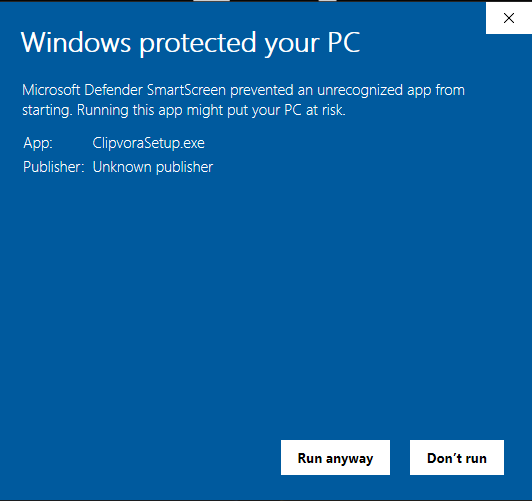
Windows may warn you on first run. Clipvora isn’t code-signed yet, so SmartScreen shows a caution screen for new publishers. Choose More info → Run anyway; the walkthrough below has screenshots.

First launch

Clipvora isn’t code-signed yet, so your system may warn you the first time. Here’s how to get past it.
Windows: keep, then run anyway

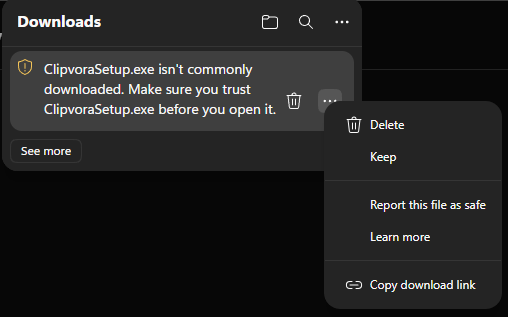
Microsoft Edge download warning with the options menu open
1. Open the installer menu and choose Keep.
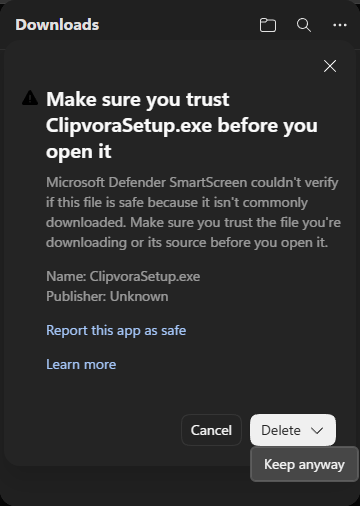
Microsoft Edge trust warning showing Keep anyway
2. Confirm the download with Keep anyway.
Windows SmartScreen warning showing Run anyway
3. Click More info, then Run anyway.

Mac: allow the installer

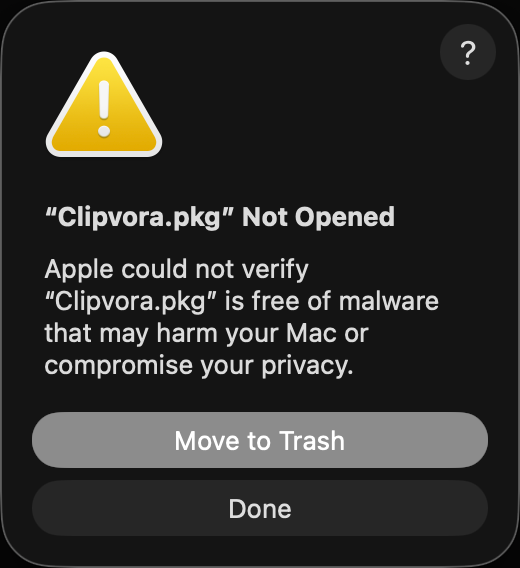
macOS warning shown when opening the Clipvora installer
1. Open the PKG, then click Done on the warning.
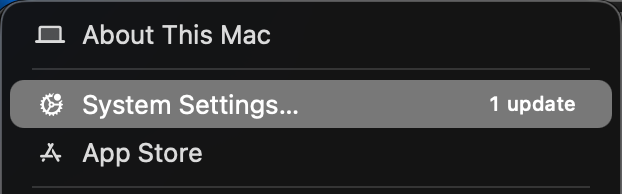
Apple menu with System Settings selected
2. Open the Apple menu and choose System Settings.
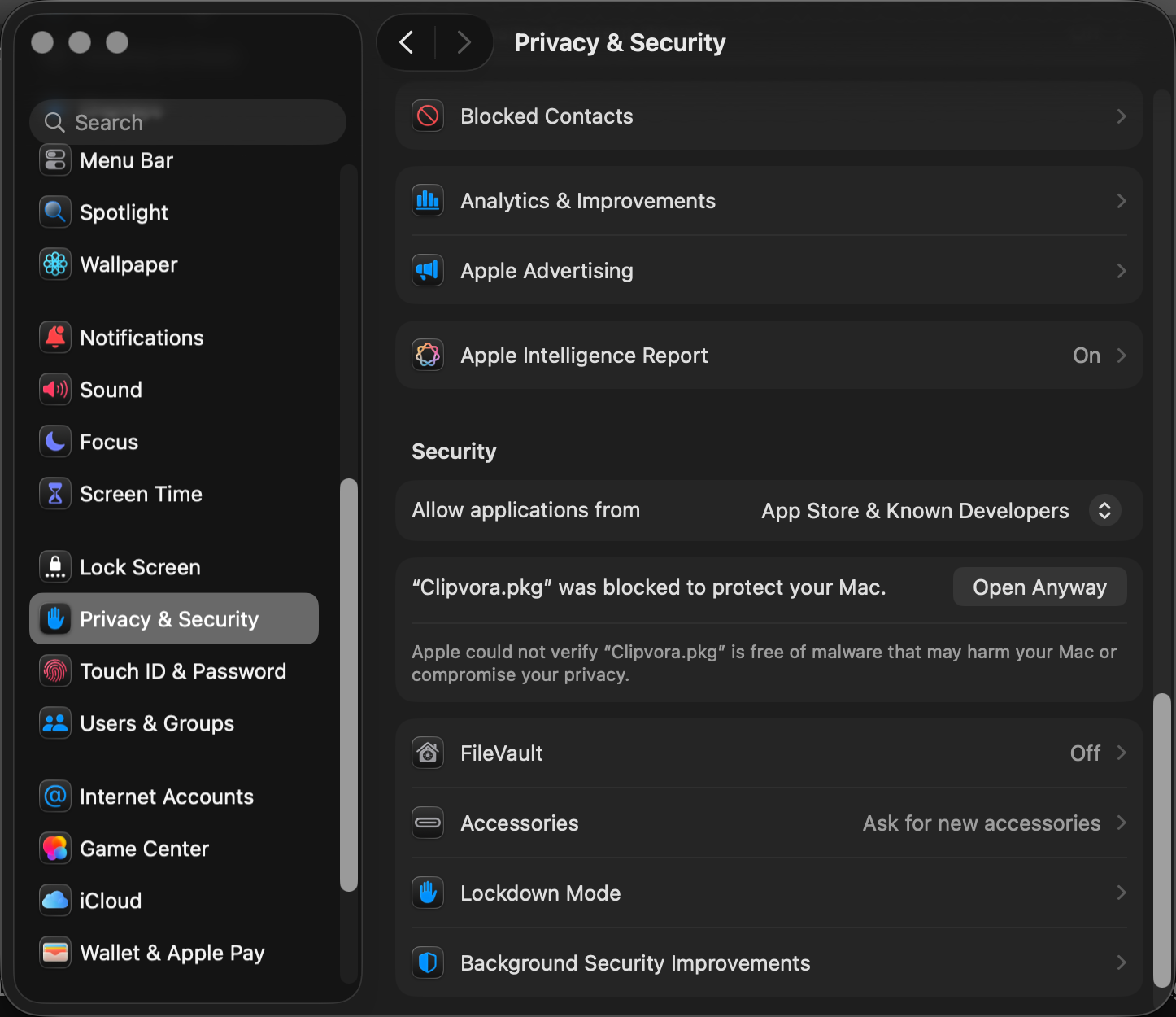
macOS Privacy and Security settings
3. Open Privacy & Security from the sidebar.
macOS security settings showing Open Anyway
4. Find the Security section and click Open Anyway.