Closed Early Access · Free for approved testers

Your next clipboard
starts on this device.

Join a small group testing Clipvora on Windows and macOS. Pick your platform, tell us how you work, and receive a private build link if approved.

Fully local No cloud sync Windows + macOS
EARLY ACCESS PRIVATE BETA
Clipvora 1.0 Private desktop build
  1. 01Request accessNOW
  2. 02Application review
  3. 03Private build link
Clip content remains local WIN / MAC
Choose your build

What do you work on?

Each button opens a prepared email. Add your OS version and primary clipboard workflow, then send it to our support team.

Testing now
FOR WINDOWS 10 / 11

Clipvora for Windows

Built for keyboard-heavy work across Slack, browsers, editors, terminals, support tools, and documents.

  • Native clipboard capture and paste
  • Global shortcuts and Cycle Paste
  • Local Snip & Edit, images, and Watch LIVE
Request Windows access
Testing now
FOR macOS

Clipvora for Mac

Designed for fast local reuse with macOS clipboard integration, global shortcuts, and native accessibility support.

  • Native clipboard capture and paste
  • Global shortcuts and Cycle Paste
  • Local Snip & Edit, images, and Watch LIVE
Request macOS access
Private builds are sent manually.

Testing capacity is limited, so requests may be accepted gradually. Only install links sent by support@clipvora.app, and do not redistribute private installers.

First launch

Install with confidence.

Early Access signing can trigger a system warning. Follow the guide for your platform if it appears.

WINDOWS SETUP

Keep, then Run anyway

3 STEPS
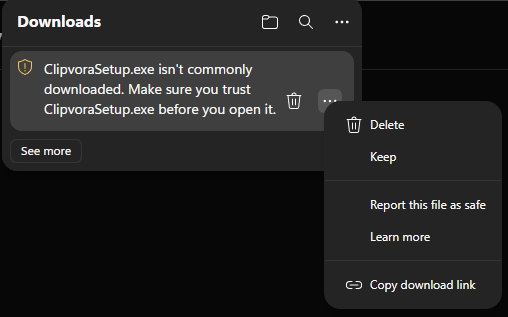
01Open options
Microsoft Edge download warning with the options menu open
Open the installer menu and choose Keep.
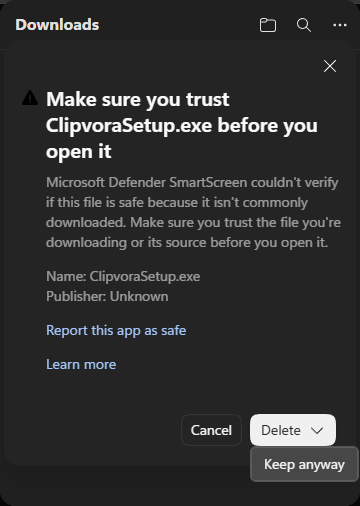
02Keep installer
Microsoft Edge trust warning showing Keep anyway
Confirm the download with Keep anyway.
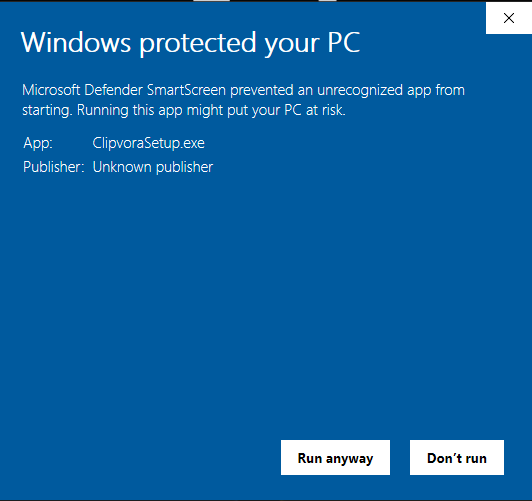
03Run anyway
Windows SmartScreen warning showing Run anyway
Click More info, then Run anyway.
MAC SETUP

Allow your private build

4 STEPS
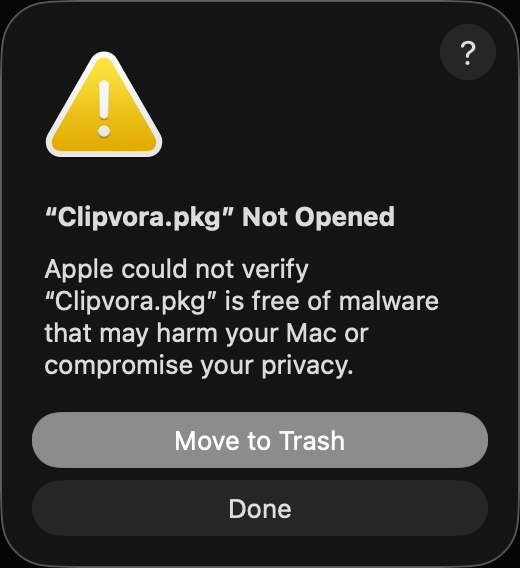
01Dismiss warning
macOS warning shown when opening the Clipvora installer
Open the PKG, then click Done on the warning.
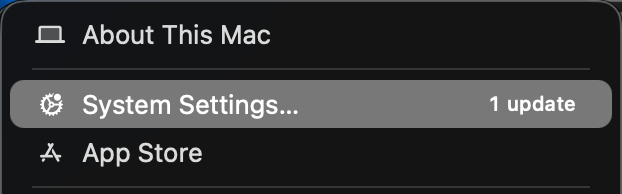
02Open Settings
Apple menu with System Settings selected
Open the Apple menu and choose System Settings.
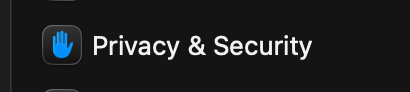
03Privacy & Security
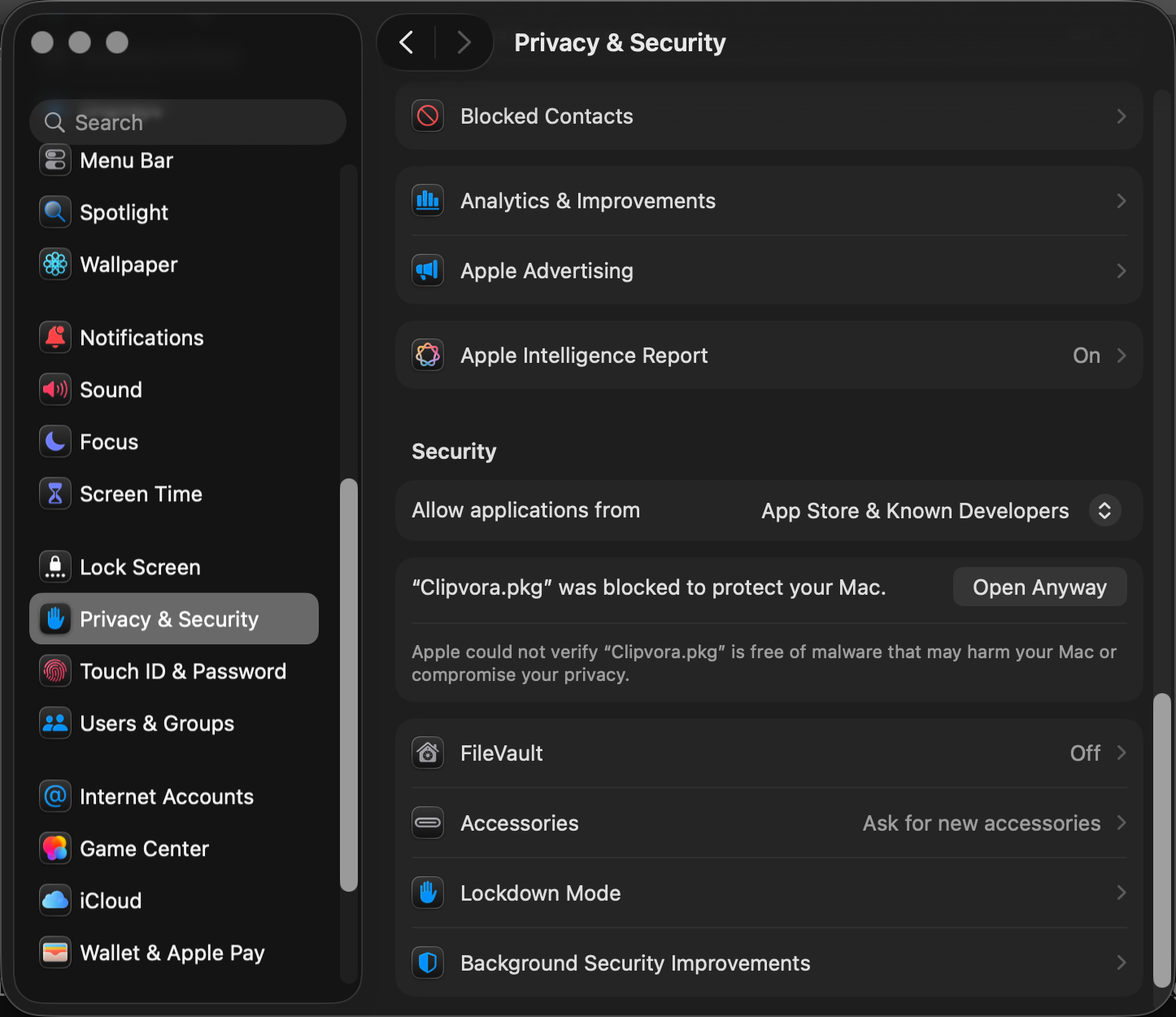
macOS Privacy and Security settings
Open Privacy & Security from the sidebar.
YOUR CLIPS NEVER NEED TO LEAVE.

Ready to test a faster local workflow?

Choose your platform